
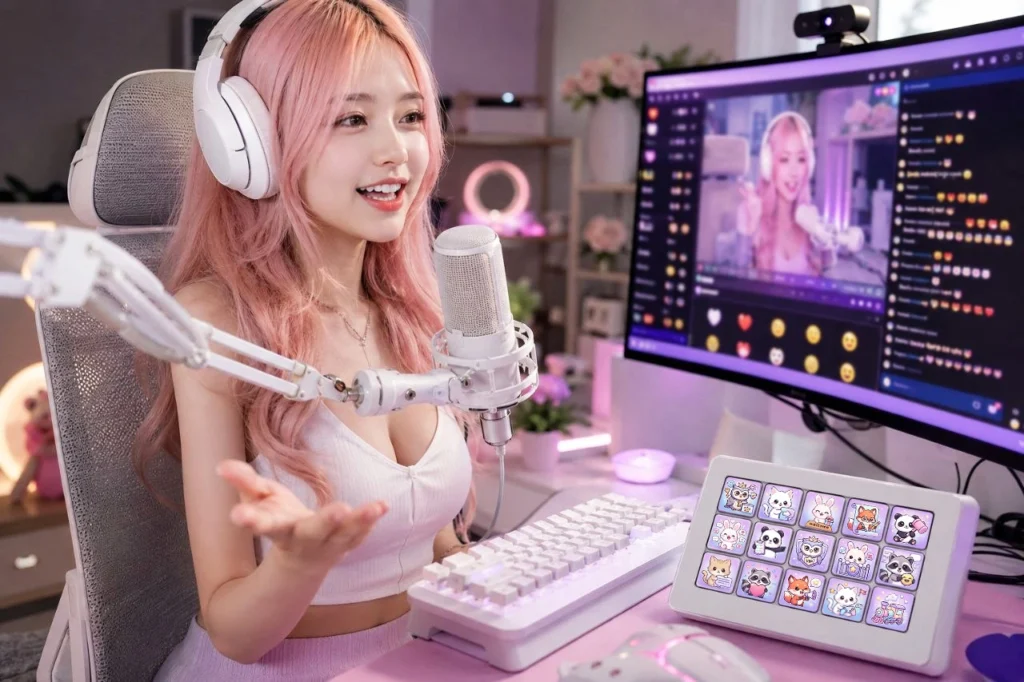
A Stream Overlay Pack is one of the easiest ways to give your Twitch or YouTube channel a professional and consistent appearance. Instead of designing every graphic yourself, you receive a complete collection of matching assets that work together to create a polished streaming experience.
If you’ve never used a Stream Overlay Pack before, this guide will walk you through the basic setup in OBS Studio and explain how each asset can improve your stream.
What’s Included in a Stream Overlay Pack?
While every pack is slightly different, a complete bundle may include:
- Animated Stream Overlays
- Stream Alerts
- Webcam Frame
- Goal Box
- Event Box
- Twitch Panels
- Profile Pictures
- Twitch & YouTube Banners
- Subscriber Badges
- Emotes
- Sound Effects
All graphics are designed to match the same visual theme, helping you create a cohesive creator brand.
Step 1: Download and Organize Your Files
After purchasing your Stream Overlay Pack:
- Download the ZIP archive.
- Extract all files to a folder on your computer.
- Keep the original folder structure so assets are easy to find later.
- Create a backup copy if you plan to customize the files.
Many packs include PNG, WEBP, PSD, MP3, and WAV files for different uses.
Step 2: Add Stream Overlays to OBS
Open OBS Studio and create a new Scene.
To add an overlay:
- Click + in the Sources panel.
- Choose Image for static overlays or Media Source for animated overlays.
- Select the appropriate file.
- Resize and position it if necessary.
- Make sure the overlay is placed above your gameplay source.
If your overlay includes a webcam area, position your camera source underneath the overlay so it fits perfectly inside the frame.
Step 3: Set Up Stream Alerts
Animated alerts appear whenever someone interacts with your stream.
Typical alerts include:
- New Follower
- New Subscriber
- Gifted Subscription
- Donation
- Raid
- Cheer
- Member
- Super Chat
Most creators use services such as StreamElements or Streamlabs to display alerts.
Upload the provided alert animations and assign the included sound effects for a consistent viewing experience.
Step 4: Add Your Webcam Frame
A webcam frame makes your camera blend naturally into your overall stream design.
Simply:
- Add your webcam source.
- Place the webcam frame above it.
- Resize the webcam until it fits neatly inside the frame.
This creates a clean, professional layout without covering important gameplay.
Step 5: Customize Your Twitch Profile
Your branding shouldn’t stop when the stream is offline.
Use the included graphics to update your:
- Twitch banner
- YouTube banner
- Profile picture
- About panels
Visitors often view your profile before following, so a complete visual identity helps create a stronger first impression.
Step 6: Upload Badges and Emotes
If you’re a Twitch Affiliate or Partner, upload the included subscriber badges and emotes through your Creator Dashboard.
Matching badges and emotes help build a recognizable community while giving subscribers exclusive artwork that fits your channel’s style.
Step 7: Configure Goal and Event Widgets
Goal Boxes and Event Boxes help display important stream information such as:
- Follower Goals
- Subscriber Goals
- Donation Goals
- Latest Follower
- Latest Subscriber
- Latest Donation
These widgets can usually be added to OBS as Browser Sources using URLs generated by your streaming platform. Position the included graphic frame around the widget to match the rest of your overlay.
Step 8: Create Multiple OBS Scenes
A professional stream usually includes several scenes, such as:
- Starting Soon
- Live Gameplay
- Just Chatting
- Be Right Back
- Stream Ending
Using the same Stream Overlay Pack across every scene keeps your broadcast visually consistent and helps viewers instantly recognize your brand.
Tips for a Professional-Looking Stream
To get the best results:
- Use matching graphics across every scene.
- Keep overlays clean and avoid covering important gameplay.
- Test every alert before going live.
- Maintain the same colors and style across Twitch, YouTube, Discord, and social media.
- Use high-resolution assets to ensure sharp visuals.
Small details create a more polished viewing experience and help your channel stand out.
Build a Consistent Streaming Brand
A Stream Overlay Pack is more than just a collection of graphics—it’s a complete branding solution for your channel. Matching overlays, alerts, panels, webcam frames, badges, and profile graphics work together to create a professional identity that viewers will remember.
Our Stream Overlay Packs are designed for Twitch streamers, YouTube creators, VTubers, cozy gamers, and content creators who want an easy way to upgrade their stream. Each bundle includes professionally designed assets that are simple to set up in OBS Studio and ready to use immediately after download, helping you spend less time designing and more time creating content.