
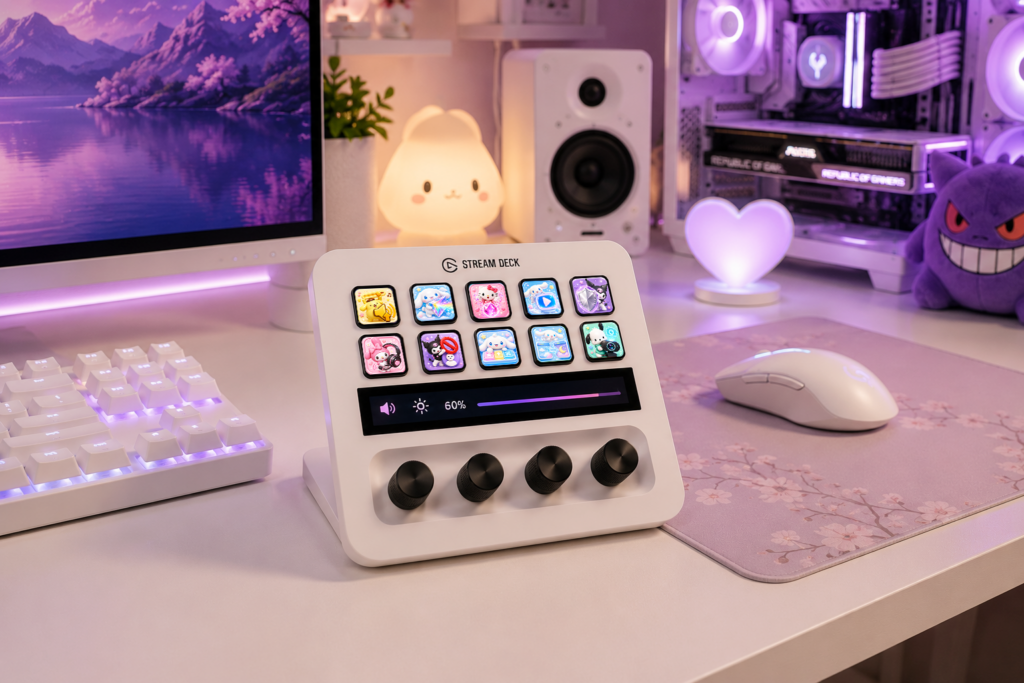
An Elgato Stream Deck can make controlling OBS Studio much easier, especially when you use multiple scenes, audio sources, cameras, and streaming tools. But as you add more shortcuts, it can quickly become difficult to find the right button.
A well-organized Stream Deck layout helps you control your stream faster, reduce mistakes, and keep your most important OBS actions within easy reach.
Start with Your Most Important OBS Controls
Your main Stream Deck page should contain the actions you use most frequently during a live stream.
A simple layout could include:
- Start Streaming
- Stop Streaming
- Start Recording
- Stop Recording
- Microphone Mute
- Camera On/Off
- Scene Switching
- Stream Pause or BRB
- Clip
- Replay Buffer
Don’t try to put every OBS function on the first page. Keep the main screen focused on actions you may need immediately while you’re live.
Create a Dedicated OBS Folder
If you use your Stream Deck for other applications as well, create a separate OBS folder.
For example:
Main Page
→ OBS
→ Audio
→ Discord
→ Music
→ Social Media
→ Applications
Inside the OBS folder, you can keep more advanced controls without overcrowding your main page.
This structure makes it much easier to find a specific command when you’re streaming.
Organize Your Scenes
Scene switching is one of the most useful Stream Deck functions for OBS.
You might organize your scenes like this:
| Button | OBS Scene |
|---|---|
| 🎬 | Starting Soon |
| 🎮 | Gameplay |
| 💬 | Just Chatting |
| ☕ | BRB |
| 👋 | Ending |
Use visually distinct icons so you can recognize each scene immediately.
If your channel has many scenes, consider creating a dedicated Scenes folder instead of placing all of them on your main page.
Create an Audio Control Section
Audio problems are among the most common things streamers need to fix while live.
Create a dedicated audio folder containing controls such as:
- Microphone Mute
- Desktop Audio Mute
- Music Mute
- Game Audio
- Discord Audio
- Mic Volume
- Music Volume
You can also use Stream Deck actions to control compatible audio applications and hardware.
Having these controls in one place means you don’t have to search through OBS during a live broadcast.
Add Camera Controls
If you frequently use a webcam, give camera controls their own section.
Useful shortcuts include:
- Camera On/Off
- Camera Scene
- Webcam Settings
- Camera Filters
- Camera Source Toggle
This is especially useful if you regularly switch between Gameplay, Just Chatting, and other scenes.
Use Folders Instead of Filling Every Button
Folders are one of the easiest ways to keep your Stream Deck organized.
A practical structure might look like:
Page 1 — Main
- Scenes
- Audio
- OBS
- Chat
- Music
- Discord
OBS Folder
- Start Stream
- Stop Stream
- Record
- Replay Buffer
- Screenshot
- Studio Mode
Scenes Folder
- Starting Soon
- Gameplay
- Just Chatting
- BRB
- Ending
Audio Folder
- Mic
- Game
- Music
- Discord
This keeps your main interface clean while still giving you access to advanced controls.
Use Custom Stream Deck Icons
Good organization isn’t only about where buttons are located. Visual recognition is just as important.
Instead of relying on generic default icons, use custom Stream Deck icons that clearly represent each action.
For example:
- Microphone icon → microphone mute
- Camera icon → webcam
- Play icon → start stream
- Gamepad icon → gameplay scene
- Music note → music controls
- Chat bubble → chat commands
When every button has a distinctive visual identity, you can find controls much faster without reading every label.
Keep Your Icon Style Consistent
Try to use icons from the same visual collection rather than mixing completely different styles.
For example, a pastel channel could use matching pastel icons, while a dark gaming setup might use minimalist or neon icons.
Your Stream Deck can then match the rest of your creator setup:
Stream Overlay → Webcam Frame → Twitch Panels → Alerts → Stream Deck Icons
This creates a more cohesive workspace and reinforces your overall channel aesthetic.
Use Different Profiles for Different Workflows
You don’t have to use the same Stream Deck layout for everything.
Consider creating separate profiles for:
- OBS Streaming
- Gaming
- Photoshop
- Video Editing
- Music
- General Productivity
For example, your OBS profile can prioritize scene switching and audio controls, while a Photoshop profile can contain tools and shortcuts for editing.
This prevents your streaming controls from becoming mixed with unrelated shortcuts.
Use Multi Actions for Complex Workflows
Stream Deck’s Multi Action feature can combine several commands into one button.
For example, a “Start Stream” button could potentially:
- Open OBS.
- Open your streaming dashboard.
- Start your music application.
- Activate a specific OBS scene.
- Perform other configured actions.
This can turn a complicated pre-stream routine into a single button press.
Create a Dedicated BRB Button
A BRB button is particularly useful during live streams.
Instead of manually changing several things, one button can switch your OBS scene to a dedicated Be Right Backlayout.
You can then return to your gameplay or main scene with another button.
This is a simple example of how a well-organized Stream Deck can reduce unnecessary interaction with OBS while you’re live.
Keep Frequently Used Buttons in the Same Position
Once you find a layout that works, try not to constantly move your most important buttons.
Muscle memory can become a major advantage.
If your microphone mute button is always in the same location, you’ll eventually be able to press it without looking down at the Stream Deck.
Consistency is particularly valuable when something unexpected happens during a live broadcast.
Don’t Overcomplicate Your Setup
A common mistake is creating too many folders, profiles, and shortcuts.
Your Stream Deck should make your workflow simpler, not more complicated.
Start with the controls you actually use. Add new buttons only when you discover a recurring task that would benefit from a shortcut.
A small, well-organized setup is usually better than a huge collection of buttons that you rarely use.
Example Stream Deck Layout for OBS
Here’s a simple setup that works well for a new streamer:
Main Page
Scenes | Audio | OBS | Chat
Music | Discord | Clip | BRB
Scenes
Starting Soon | Gameplay | Just Chatting | BRB
Ending | Full Camera | Intermission | Back
Audio
Mic Mute | Game | Music | Discord
Mic Volume | Music Volume | Desktop Audio | Back
OBS
Start Stream | Stop Stream | Record | Replay Buffer
Studio Mode | Screenshot | Settings | Back
This gives you quick access to the controls you need without overwhelming the main interface.
Customize Your Stream Deck with Matching Icons
A well-organized Stream Deck becomes even more useful when every button is easy to recognize.
Our Stream Deck Icon Packs are designed for Twitch streamers, OBS users, gamers, VTubers, and content creators. Matching icon sets make it easy to build a consistent layout for scenes, audio controls, streaming actions, applications, and other shortcuts.
You can choose an icon style that fits your existing channel design, from cute and pastel aesthetics to gaming, anime-inspired, minimalist, and other themed designs.
Final Thoughts
Organizing your Stream Deck for OBS is about creating a workflow that feels natural. Keep your most important controls on the main page, group related actions into folders, use separate profiles when necessary, and choose recognizable custom icons.
Once your layout is organized, your Stream Deck becomes more than a shortcut device—it becomes a dedicated control center for your Twitch or YouTube stream.