
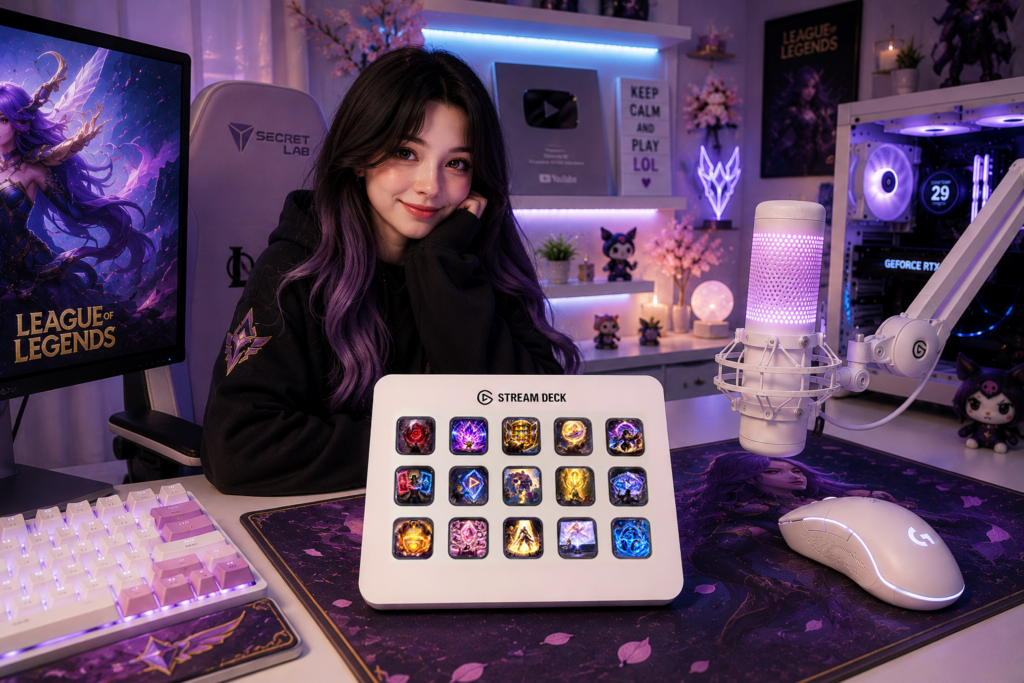
A Twitch overlay is one of the easiest ways to give your stream a more polished and recognizable appearance. With the right overlay, you can frame your gameplay, webcam, alerts, and other stream elements without building the entire design from scratch.
The good news is that adding a Twitch overlay to OBS Studio is straightforward. In this guide, we’ll walk through the process of installing static and animated stream overlays and explain how to organize them correctly in your OBS scenes.
What Is a Twitch Overlay?
A Twitch overlay is a graphic or animation placed over your stream content. It can contain elements such as:
- Webcam frames
- Decorative borders
- Stream information
- Recent events
- Chat areas
- Goals
- Animated graphics
- Themed backgrounds
Stream Overlay Packs often contain several coordinated graphics designed to work together, allowing you to create a consistent visual style across your different OBS scenes.
Before You Start
Before installing an overlay, download and extract your Stream Overlay Pack.
Depending on the product, you may receive files such as:
- PNG
- WEBP
- JPG
- GIF
- WEBM
- MP4
- PSD
The exact formats depend on the asset pack. OBS Studio supports image sources for static graphics and Media Sources for video and audio files.
Tip: Keep your stream assets in a dedicated folder on your computer instead of scattering them across Downloads, Desktop, and other locations. This makes it much easier to maintain your OBS setup later.
Step 1: Open OBS Studio
Launch OBS Studio and open the Scene Collection you want to use.
If you’re creating your first setup, you can start with a few basic scenes:
- Starting Soon
- Gameplay
- Just Chatting
- Be Right Back
- Ending
OBS scenes are built from individual Sources, which can include games, webcams, images, videos, text, and other elements.
Step 2: Check Your Canvas Resolution
Before adding graphics, make sure your OBS canvas matches the resolution your overlay was designed for.
For example, many modern stream graphics are designed for:
1920 × 1080
If your canvas uses a different aspect ratio or resolution, you may need to reposition or resize your graphics.
This is particularly important because changing the Base (Canvas) Resolution can require you to realign or resize existing sources.
For most standard 16:9 Twitch layouts, 1920 × 1080 is a convenient starting point.
Step 3: Add a Static Overlay
If your overlay is a PNG or another supported image format, add it as an Image Source.
In OBS:
Sources → + → Image
Give the source a recognizable name, such as:
Gameplay Overlay
Then select your overlay file.
OBS will place the image into your scene, where you can position and resize it. Image Sources are specifically designed for adding images and slideshows to OBS scenes.
Step 4: Make the Overlay Fill the Canvas
Select the overlay in your Sources list and use:
Transform → Fit to Screen
You can also use the OBS shortcut for fitting a source to the screen.
If your overlay was designed for the same resolution as your canvas, it should align correctly with the scene.
Avoid stretching an overlay with a different aspect ratio, as this can distort the design.
Step 5: Add Your Gameplay or Camera
Now add the content that should appear underneath the overlay.
For example:
Sources
- Gameplay
- Webcam
- Stream Overlay
The order is important.
OBS displays sources higher in the Sources list above sources underneath them. This means your decorative overlay should generally be positioned above your gameplay or webcam source.
A typical gameplay scene might look like:
Stream Overlay
Webcam
Gameplay
The gameplay remains visible underneath, while the overlay provides the visual frame around it.
Step 6: Position Your Webcam
If your overlay contains a dedicated webcam frame, add your webcam using:
Sources → + → Video Capture Device
Then place it underneath the overlay layer.
Resize the webcam until it fits inside the frame.
If the webcam frame is part of a transparent PNG, the frame can remain above the camera while the camera remains visible through the transparent area.
Step 7: Add Animated Overlays
Animated overlays work slightly differently.
For video-based assets such as WEBM or MP4, use:
Sources → + → Media Source
Then select your animation file.
OBS supports several video formats through Media Source, including WEBM, MP4, MOV, MKV, AVI, GIF, and others.
Depending on the animation, you may want to enable:
Loop
if you want the animation to repeat continuously.
For an animation that should play once when a scene becomes active, options such as Restart playback when source becomes active can be useful.
Step 8: Add Stream Alerts
Alerts can be added separately from your main overlay.
For example, your scene might contain:
Animated Overlay
Alerts Source
Webcam Frame
Gameplay
Many alert systems use an OBS Browser Source to display follower, subscriber, donation, or other events. OBS identifies Browser Source as a source type commonly used for stream alerts and chat boxes.
This allows your overlay and alerts to work independently.
Step 9: Create Separate Scenes
Don’t try to put every graphic into one giant OBS scene.
Instead, create separate scenes for different parts of your broadcast.
Starting Soon
Use:
- Background
- Animated overlay
- Starting Soon text
- Music
Gameplay
Use:
- Game capture
- Webcam
- Webcam frame
- Stream overlay
- Alerts
BRB
Use:
- Background
- Animated graphics
- BRB message
- Music
Ending
Use:
- Background
- Animated overlay
- Social media information
- Ending message
This makes switching between different parts of your stream much easier.
Step 10: Lock Your Overlay Sources
Once everything is positioned correctly, lock your graphic sources in OBS.
This prevents you from accidentally moving your overlay while adjusting your gameplay, webcam, or other sources.
It’s especially useful when your scene contains several layers.
Common Twitch Overlay Problems
The overlay is covering my gameplay
Check the order of your Sources.
The overlay should normally be above the gameplay in the Sources list.
The overlay looks stretched
Check the aspect ratio and canvas resolution.
If your overlay was designed for 1920 × 1080 but your canvas uses a different aspect ratio, the elements may need to be repositioned.
My animated overlay isn’t playing
Check that you’re using Media Source for a video-based overlay and verify that the file format is supported.
Also check whether the animation is configured to loop or restart when the source becomes active.
My webcam appears behind the frame incorrectly
Move the webcam source below the webcam frame in the Sources list.
Remember:
Higher source = displayed on top.
My overlay disappears when I change scenes
That’s normal if the overlay was added only to one scene.
You can either add it individually to each scene or use OBS features that allow you to reuse sources where appropriate.
Test Everything Before Going Live
Before your first broadcast, spend a few minutes testing your scenes.
OBS itself recommends testing your settings before going live rather than immediately starting your first stream.
Check:
- Gameplay position
- Webcam position
- Overlay alignment
- Animated graphics
- Alerts
- Microphone
- Desktop audio
- Scene transitions
- Text readability
Recording a short test locally is a simple way to catch problems before your viewers do.
Give Your Stream a Consistent Visual Style
Installing an overlay is only the beginning. For a professional-looking channel, try to keep your graphics visually consistent.
Your:
Twitch profile → banners → panels → overlays → alerts → webcam frame → Stream Deck icons
can all use the same colors, typography, and overall aesthetic.
This is especially useful for channels built around recognizable styles such as kawaii, cozy, pastel, anime, cyberpunk, gothic, or minimalist designs.
Find a Complete Stream Overlay Pack
If you don’t want to build your OBS graphics from scratch, a coordinated Stream Overlay Pack can give you the main visual elements you need in one download.
Our Creator Streaming Assets include themed stream overlays and other graphics designed for Twitch streamers, YouTube creators, VTubers, gamers, and content creators.
A complete overlay pack can save time while helping you create a consistent visual identity across your OBS scenes.
Whether you’re setting up your first Twitch channel or refreshing an existing stream, installing a coordinated overlay in OBS Studio is a simple way to make your broadcast look more polished and professional.