
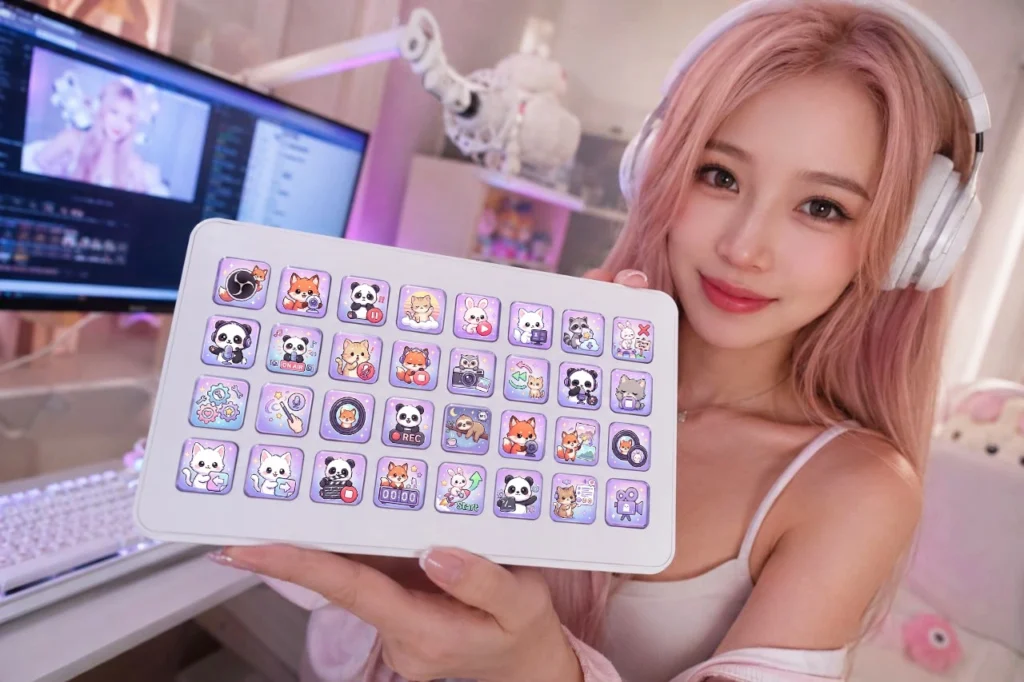
A Stream Deck can make OBS Studio much easier to control during a live stream. Instead of switching between OBS windows and manually clicking different controls, you can assign common streaming actions to dedicated buttons.
One of the most useful features is Stream Deck Profiles. Profiles allow you to organize different sets of buttons for different workflows, games, scenes, or applications.
This guide explains how to use Stream Deck profiles with OBS Studio and how to organize them for a practical streaming workflow.
What Is a Stream Deck Profile?
A Stream Deck profile is a collection of buttons and actions configured for a particular workflow.
Instead of having every possible command on one screen, you can create separate profiles for different tasks.
For example:
- OBS Streaming — scene switching, recording, streaming and audio
- Gaming — game-specific shortcuts
- Just Chatting — camera and chat controls
- Editing — shortcuts for your editing software
- Social Media — browser and content management shortcuts
Each profile can have its own buttons, folders, icons, and actions.
Why Use Profiles with OBS Studio?
A Stream Deck can contain many different commands, but putting everything on one page can quickly become confusing.
Profiles help keep your controls organized.
For example, your main OBS profile could contain:
| Button | Action |
|---|---|
| 🎥 | Start/Stop Streaming |
| ⏺ | Start/Stop Recording |
| 🎮 | Gameplay Scene |
| 💬 | Just Chatting Scene |
| 🟢 | Starting Soon |
| 🔴 | BRB |
| 🔊 | Microphone Mute |
| 🎧 | Desktop Audio Mute |
This gives you quick access to the controls you use most frequently.
How to Create an OBS Profile
First, open the Elgato Stream Deck application.
Depending on your version of Stream Deck, profile management is available through the profile controls in the application.
Create a new profile and give it a descriptive name such as:
OBS Studio
This makes it easy to identify the profile later.
You can then start adding actions to the buttons.
Connect Stream Deck to OBS Studio
Stream Deck can integrate with OBS Studio through its OBS Studio plugin.
Once the plugin is available in Stream Deck, you can add OBS-related actions to your buttons.
Typical OBS actions include:
- Switch scenes
- Start streaming
- Stop streaming
- Start recording
- Stop recording
- Pause recording
- Toggle source visibility
- Mute audio
- Unmute audio
- Adjust audio
- Replay Buffer controls
The available actions can vary depending on your Stream Deck and OBS/plugin versions.
Create Buttons for Your OBS Scenes
Scene switching is one of the most useful Stream Deck functions.
Imagine that your OBS scene collection contains:
- Starting Soon
- Gameplay
- Just Chatting
- BRB
- Ending
Instead of selecting each scene manually in OBS, you can assign each one to a Stream Deck button.
For example:
Button 1 → Starting Soon
Button 2 → Gameplay
Button 3 → Just Chatting
Button 4 → BRB
Button 5 → Ending
This gives you direct access to the scenes while streaming.
Organize Scenes by Color or Icons
Visual organization can make your Stream Deck much easier to use.
For example, you could use different icon styles for:
- Scenes
- Audio
- Recording
- Streaming
- Sources
Custom icons can make it easier to recognize an action immediately without reading every button label.
This is particularly useful when you need to react quickly during a live broadcast.
Create an Audio Control Section
Audio mistakes are easy to make during a live stream, so keeping important audio controls accessible can be useful.
You could create buttons for:
- Microphone mute
- Desktop audio mute
- Music mute
- Game audio
- Discord audio
- Audio monitoring
For more advanced setups, you can use folders to separate general audio controls from individual sources.
Create a Streaming Control Section
Your main OBS profile should also contain the controls you need before and during a broadcast.
Useful buttons can include:
- Start Streaming
- Stop Streaming
- Start Recording
- Stop Recording
- Pause Recording
- Replay Buffer
- Screenshot
- Stream information
Avoid putting rarely used actions on the main page. The goal is to keep your most important controls immediately accessible.
Use Folders to Keep Your Profile Clean
You do not need to put every action on the first page.
Stream Deck folders can help organize less frequently used controls.
For example:
OBS Studio
→ Scenes
→ Audio
→ Sources
→ Recording
→ Advanced
Your main page can then contain only the most important actions.
This is usually easier to use than filling every available button with a different command.
Create Different Profiles for Different Games
Profiles become especially useful if you stream multiple games.
For example:
OBS Main
Contains your general streaming controls.
Fortnite
Contains Fortnite-specific shortcuts and controls.
Minecraft
Contains Minecraft-related actions.
Contains camera, music, chat, and scene controls.
You can therefore create a workflow where the Stream Deck changes to a different layout depending on what you are doing.
Use Application-Based Profiles
Stream Deck can also use profiles associated with specific applications.
For example, you might have:
OBS Studio Profile
Used while OBS is active.
Photoshop Profile
Used for photo editing.
Premiere Pro Profile
Used for video editing.
Browser Profile
Used for web-related tasks.
This turns one Stream Deck into a multi-purpose control panel rather than a device dedicated only to streaming.
Create an OBS Main Profile
For most streamers, a simple main profile is enough.
A practical layout could look like this:
Row 1 — Scenes
- Starting Soon
- Gameplay
- Just Chatting
- BRB
- Ending
Row 2 — Audio
- Mic
- Desktop Audio
- Music
- Discord
- Game Audio
Row 3 — Stream Controls
- Start Stream
- Stop Stream
- Start Recording
- Stop Recording
- Replay Buffer
Row 4 — Utilities
- OBS
- Chat
- Stream Dashboard
- Folders
- Additional Controls
The exact layout depends on how many buttons your Stream Deck has.
Use Custom Stream Deck Icons
Default Stream Deck icons are functional, but custom icons can make a profile much easier to understand visually.
For example, you can use:
- 🎙 Microphone icon
- 🎮 Game icon
- 🎥 Camera icon
- 🔴 Recording icon
- 💬 Chat icon
- 🔊 Audio icon
- ▶️ Streaming icon
A consistent icon style can also make the entire Stream Deck look more professional.
This is especially useful if your Stream Deck is part of your overall Twitch or YouTube branding.
Don’t Overload Your Profile
One common mistake is trying to put every possible OBS action on the Stream Deck.
This can make the device harder to use rather than easier.
Instead, ask:
“Would I actually need this button during a stream?”
If the answer is no, move the action into a folder or another profile.
Your main profile should contain the controls you need most often.
Create a Backup of Your Profiles
Once you have spent time creating your Stream Deck layouts, make sure you have a backup.
This is particularly important if you:
- Reinstall Windows or macOS
- Replace your computer
- Reset Stream Deck
- Change your streaming setup
Keeping a backup means you do not have to recreate your entire configuration from scratch.
Common Stream Deck Profile Mistakes
Too Many Buttons
More buttons do not necessarily mean a better workflow.
Poor Organization
If you have to search for an action every time you need it, the profile needs reorganizing.
Inconsistent Icons
Random icon styles can make buttons harder to recognize quickly.
No Folders
Folders are useful for keeping less frequently used commands out of the main profile.
No Backup
Losing a carefully configured profile can be frustrating and time-consuming.
A Simple Profile Structure for Beginners
If you are new to Stream Deck, start with just three sections:
Main Profile
- Starting Soon
- Gameplay
- BRB
- Just Chatting
- Ending
Audio Folder
- Mic
- Desktop Audio
- Music
- Discord
Recording Folder
- Start Recording
- Stop Recording
- Replay Buffer
You can expand the setup later as you discover which actions you actually use.
Stream Deck Profiles for a More Efficient OBS Workflow
The biggest advantage of Stream Deck profiles is not the number of buttons you can create. It is the ability to organize your controls around the way you actually work.
A well-designed profile lets you control OBS without constantly looking away from your content.
You can keep your main streaming controls on the first page, move advanced functions into folders, and create separate profiles for different games or applications.
Custom icons can make this workflow even easier by allowing you to recognize actions at a glance.
Build Your Stream Deck Setup
At InspireStudio, Stream Deck icon packs can help you create a more organized and visually consistent Stream Deck setup for OBS Studio and other creator workflows.
Whether you need icons for streaming, audio, social media, gaming, or PC controls, using a consistent icon style can make your Stream Deck easier to navigate while also matching the visual identity of your channel.
Start with the controls you use every stream, organize everything else into folders or separate profiles, and expand your setup as your workflow grows.
A good Stream Deck profile should make your workflow simpler—not give you more buttons to manage.