
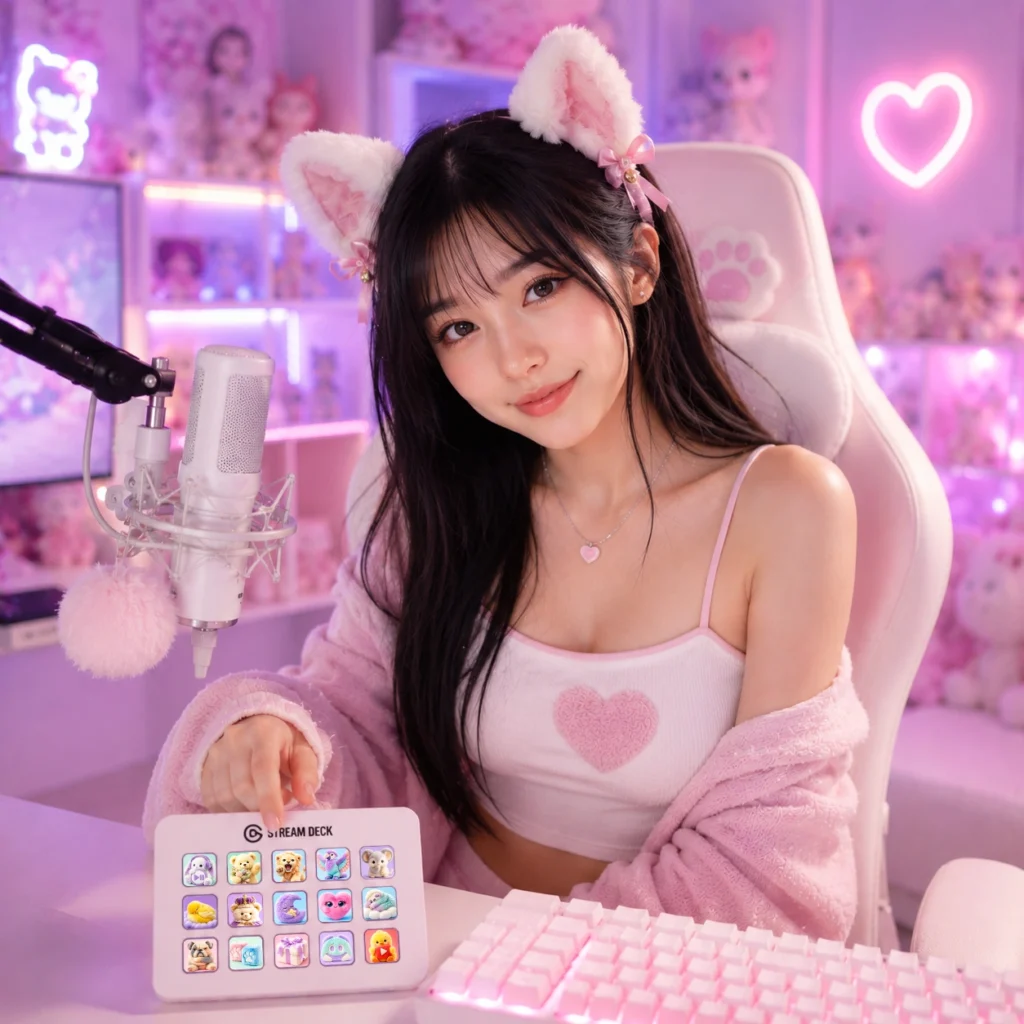
OBS Studio is one of the most popular streaming applications for Twitch, YouTube, Kick, and Facebook Live. It offers powerful features, but the large number of settings can feel overwhelming for beginners. Choosing the right configuration helps you achieve smoother streams, better video quality, and a more enjoyable viewing experience without putting unnecessary strain on your computer.
This guide covers the essential OBS settings every new streamer should understand before going live.
Choose the Right Output Resolution
Your streaming resolution affects both video quality and system performance.
A good starting point is:
- Base (Canvas) Resolution: 1920×1080
- Output (Scaled) Resolution: 1920×1080 or 1280×720
If your computer struggles with performance, streaming at 720p often provides a smoother experience while still looking great on most devices.
Stream at 60 FPS or 30 FPS?
Frame rate depends on the type of content you create.
60 FPS is ideal for:
- Fast-paced games
- FPS titles
- Racing games
- Action games
30 FPS works well for:
- Just Chatting
- Art streams
- Music
- Podcasts
- Slower-paced games
If your PC or internet connection is limited, 30 FPS can provide a more stable stream.
Select the Best Encoder
OBS supports different encoders depending on your hardware.
Common options include:
- Hardware encoder (recommended when available)
- Software x264 encoder
- Apple VideoToolbox (Mac)
- NVIDIA NVENC (NVIDIA GPUs)
- AMD AMF (AMD GPUs)
- Intel Quick Sync (Intel CPUs)
Hardware encoders generally reduce CPU usage and provide excellent performance for most streamers.
Set an Appropriate Bitrate
Bitrate controls the amount of video data sent to your streaming platform.
A higher bitrate improves image quality but also requires a faster and more stable internet connection.
Always follow the bitrate recommendations of your streaming platform and ensure your upload speed comfortably exceeds your chosen bitrate.
Configure Audio Settings
Good audio is often more important than perfect video quality.
Recommended settings include:
- Sample Rate: 48 kHz
- Stereo audio
- Proper microphone gain
- Noise suppression if needed
- Noise gate to reduce background sounds
- Compressor for more consistent voice volume
Test your microphone before every stream to ensure clear, balanced audio.
Organize Your OBS Scenes
Most streamers use multiple scenes instead of relying on a single layout.
Common scenes include:
- Starting Soon
- Live Gameplay
- Just Chatting
- Be Right Back
- Stream Ending
Switching between scenes creates a more professional broadcast and keeps viewers engaged.
Keep Your Sources Organized
Inside each scene, organize your sources logically.
Typical sources include:
- Game Capture
- Webcam
- Stream Overlay
- Alerts
- Chat Box
- Browser Sources
- Audio Sources
Naming your sources clearly makes future edits much easier.
Test Before Going Live
Before every broadcast:
- Check your microphone.
- Verify game audio.
- Test alerts.
- Confirm webcam positioning.
- Review your stream overlay.
- Ensure your internet connection is stable.
A quick test can prevent technical problems during your live stream.
Complete Your Stream with Professional Branding
Even with perfect OBS settings, your stream may still look unfinished without consistent branding.
Professional creators often use matching:
- Stream Overlays
- Animated Alerts
- Webcam Frames
- Twitch Panels
- Profile Banners
- Subscriber Badges
- Emotes
These graphics help create a recognizable visual identity and leave a stronger first impression on new viewers.
Build a Better Streaming Experience
OBS Studio gives you everything you need to start streaming successfully. By choosing the right resolution, frame rate, encoder, audio settings, and scene organization, you’ll create smoother broadcasts and spend less time troubleshooting technical issues.
To complete your setup, explore our collection of Stream Overlay Packs, Creator Branding Kits, and Stream Deck Icon Packs. Designed for Twitch streamers, YouTube creators, VTubers, and gamers, our assets help you build a professional-looking channel that’s ready to impress from your very first stream.