
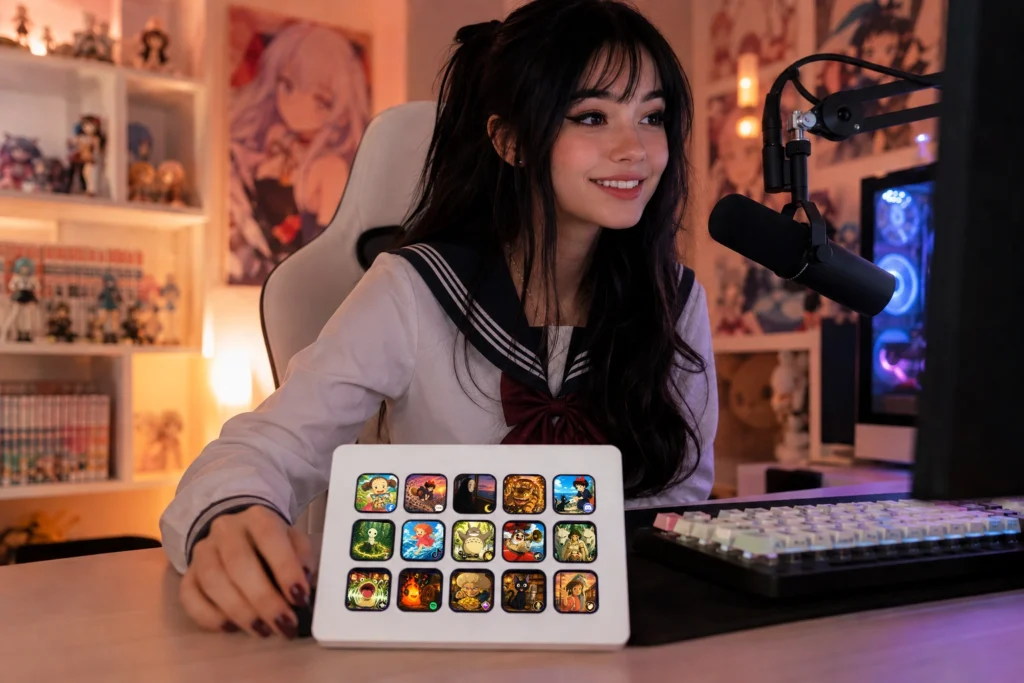
The Elgato Stream Deck is more than just a shortcut keypad—it’s a powerful productivity tool for streamers, content creators, gamers, and professionals. Whether you’re controlling OBS Studio, switching scenes, managing audio, launching apps, or automating repetitive tasks, customizing your Stream Deck can make your workflow faster and more enjoyable.
This guide covers the essentials of creating a personalized Stream Deck setup that looks great and works efficiently.
Start by Planning Your Workflow
Before assigning buttons, think about the actions you perform most often during a stream.
Common tasks include:
- Start and stop streaming
- Switch OBS scenes
- Mute or unmute your microphone
- Control desktop audio
- Trigger stream alerts
- Launch applications
- Open websites
- Control music playback
- Run multi-action macros
Placing your most frequently used actions on the first page helps you react quickly while live.
Organize Buttons into Folders
As your Stream Deck profile grows, organizing related actions into folders keeps everything easy to find.
Popular folder categories include:
- OBS Controls
- Audio
- Chat & Moderation
- Social Media
- Lighting
- Music
- Productivity
- Games
- System Controls
A clean layout reduces mistakes and makes your workflow feel more intuitive.
Use Custom Stream Deck Icons
Custom icons make your Stream Deck much easier to navigate than the default symbols.
Benefits include:
- Faster button recognition
- A cleaner workspace
- Consistent visual organization
- Personalized aesthetics
- Improved streaming workflow
Whether you prefer cute, minimalist, cyberpunk, anime-inspired, or professional designs, matching icons help create a setup that reflects your style.
Match Your Icons to Your Stream Branding
Your Stream Deck is part of your overall creator setup.
For a cohesive appearance, use icon packs that complement your:
- Stream overlays
- Webcam frame
- Stream alerts
- Twitch panels
- Profile graphics
- Channel color palette
A consistent visual identity extends beyond what viewers see on screen—it also improves your own workspace.
Create Multiple Profiles
Different activities often require different button layouts.
Consider creating separate Stream Deck profiles for:
- Live Streaming
- Video Editing
- Photo Editing
- Gaming
- Work
- Music Production
Profiles can switch automatically when certain applications are opened, helping you access the tools you need without manually changing layouts.
Customize Key Labels
Even with custom artwork, clear labels can make navigation easier.
Use short, descriptive names like:
- Go Live
- BRB
- Mute Mic
- Clips
- Discord
- Spotify
- Record
- Camera
Simple labels improve usability, especially when you’re focused on your content.
Automate Repetitive Tasks
One of the biggest advantages of the Stream Deck is automation.
Multi-action buttons can perform several commands with a single press, such as:
- Launch OBS Studio
- Open Twitch Creator Dashboard
- Start Spotify
- Enable Do Not Disturb mode
- Turn on streaming lights
Automating routine tasks saves time and helps reduce setup errors before each stream.
Keep Your Layout Simple
A common mistake is trying to place every possible shortcut on the main page.
Instead:
- Reserve the first page for your most-used actions.
- Group less frequent controls into folders.
- Use consistent icon styles.
- Leave some empty space if it improves readability.
A clean layout is often more effective than a crowded one.
Update Your Setup as You Grow
Your workflow will change as your channel evolves.
Review your Stream Deck layout regularly and remove buttons you no longer use. Rearranging keys based on your habits helps keep your setup efficient over time.
Create a Stream Deck That Works for You
Customizing your Elgato Stream Deck isn’t just about appearance—it’s about building a workspace that helps you stream, create, and work more efficiently. Thoughtful organization, automation, and consistent visuals can save time and reduce distractions during every broadcast.
Our collection of Stream Deck Icon Packs is designed for streamers, VTubers, gamers, and content creators who want a polished, organized workspace. Featuring themes ranging from cute kawaii and pastel designs to cyberpunk, anime-inspired, gothic, and minimalist styles, our icon packs help you personalize your Stream Deck while keeping every button easy to recognize and your setup visually consistent.